
How To Use the PowerShell Expand Property for Select-Object
The PowerShell Select-Object cmdlet enables you to seamlessly cherry-pick objects and properties from an input group of objects. But sometimes you just have to know more. The ExpandProperty is a switch for Select-Object that expands details about a particular property.
Discover the power of the PowerShell Expand Property (-ExpandProperty) switch in this example-led tutorial.
Prerequisites
This tutorial will be a hands-on demonstration. If you’d like to follow along, all you need is a Windows Machine with PowerShell 5.1 and above. This article uses a Windows 10 machine with PowerShell 5.1.
Related:How to Walk Through a PowerShell 7 Upgrade
Extracting Property Object Values with PowerShell Expand Property
Log in to your Windows machine and fire up a PowerShell terminal. In this section, you will get acquainted with the Select-Object cmdlet and its ExpandProperty switch.
1. Run the Get-Service cmdlet to get a list of all services on your system. Pipe the output to the Select-Object cmdlet to select and display only the name property of each service object, as shown below.
Get-Service | Select-Object -Property NameYou should now see a single column of objects representing a list of names of services on your system, as in the truncated shot below.
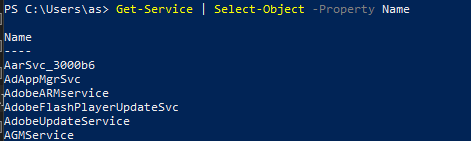
Selecting the names of the existing system services
2. Run the Get-Member cmdlet at the tail end of the previous pipeline to confirm the type of objects that select-object returns as below. Knowing the type of object helps write functions or cmdlets to extend your pipelines.
Get-Service | Select-Object -Property Name | Get-MemberRelated:Getting to Know the PowerShell Pipeline and Creating Functions
Refer to the screenshot below, and you will notice that though the -Property switch outputs what appears to be a list of strings, those are the Selected list of System.ServiceProcess.ServiceController objects.
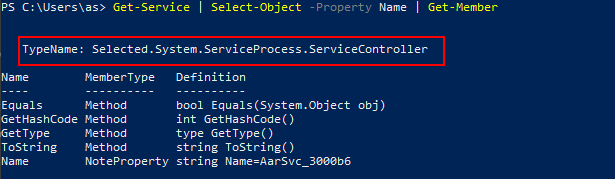
Viewing the type of a ServiceController object with Get-Member
3. Replace the Get-Members cmdlet with mkdir to automatically create a folder for each service. The -first 5 switch limits the number of objects to return. In turn, the mkdir function will only create five folders based on the objects in the pipeline.
Get-Service | Select-Object -Property Name -First 5 | mkdirYou should see an output similar to the screenshot below, indicating the successful attempt.
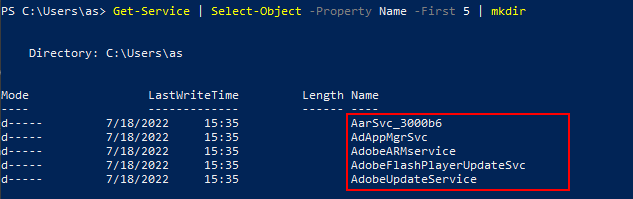
Creating a folder for the services on your system
4. Remove the folders by replacing mkdir with rmdir as in the snippet below. Turn on the -Verbose switch to show verbose output in your terminal.
Get-Service | Select-Object -Property Name -First 5 | rmdir -VerboseThe rmdir cmdlet expects strings and cannot handle the hashtable representation of the ServiceController objects. Your attempt should fail with several errors, as in the screenshot below.
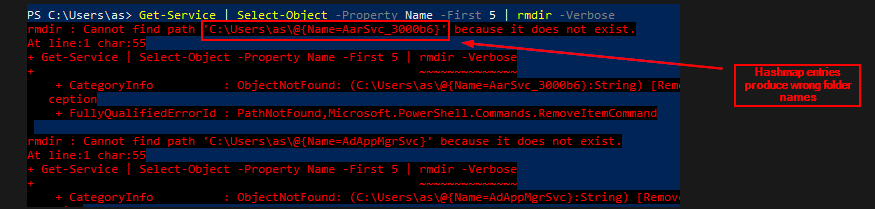
Demonstrating that some cmdlets expect string values instead of hashtables
Related:Discover PowerShell to Delete Files with Remove-Item and WMI
5. Change the -Property switch to the -ExpandProperty switch as in the following snippet. Doing so allows you to get the value of a property as a string when all you need is a string.
Get-Service | Select-Object -ExpandProperty Name -First 5 | rmdir -VerboseCombined with rmdir, you should see your attempt to automatically remove the folders succeed without errors, as in the screenshot below.

Deleting folders named after the services expanded
Creating a Set of Selected Objects with Specific Properties
To shorten the code snippets in the sections, create a variable for the first 20 services on your machine as follows.
Run the Get-Service command, select the first 20 objects via the Select-Object cmdlet, and store the objects in a variable named $testServices. Select only the Name, Status, and DependentServices properties as follows.
$testServices = Get-Service | Select-Object -Property Name,Status,DependentServices -First 20The PowerShell Expand Property switch can only expand one property at a time, in contrast to the Property switch, which can select more than one property simultaneously.
Execute the variable name, $testServices, to view the structure of its contents.
$testServicesYou should see a table displaying the properties of the services you shortlisted, similar to the screenshot below.
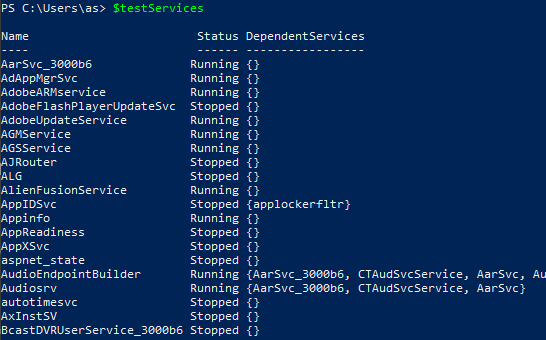
Displaying the contents of $testServices
Expanding a Collection Property with PowerShell Expand Property
A PowerShell object can have properties that are collections of objects, also known as collection properties. In this section, you will learn how to use PowerShell Expand Property to expand a collection property to view its members’ properties.
Execute the Select-Object cmdlet on the $testServices variable and expand the DependentServices property of each service.
$testServices | Select-Object -ExpandProperty DependentServicesSince DependentServices is a collection property, the output is a list of the services in all populated collections, as shown below. Note the duplicates in the list due to concatenating results from the expanded DependentServices.
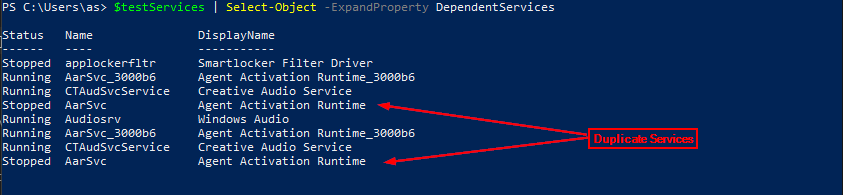
Expanding the DependentServices property
Combining Property with PowerShell Expand Property for Categorized Output
Now you have a list of dependent services, but how do you know which service they depend on? In this section, you will learn to use the -Property switch to categorize an expanded property.
Run the command below to categorize the DependentServices properties by Name.
$testServices | Select-Object -ExpandProperty DependentServices -Property NameSince the dependent services already have a Name property, the categorization step fails, as shown below.
The error below tells you that the initial list of services (in $testServices) already has a Name property conflicting with a Name property in the expanded DependentServices property.
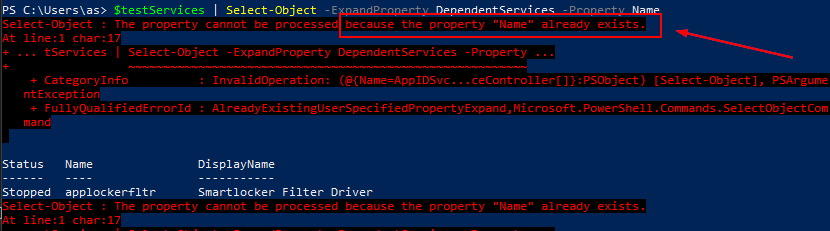
Attempting to group an expanded property by the parent object name
One workaround is to create Calculated Properties to rename the identifier property as follows.
Save the previous command output modified to specify a calculated property called Depends On as the identifier property in a variable called $depServ. Depends on will contain the Name value for every service in $testService.
The property name, Depends on, was arbitrarily chosen in this tutorial and can be any expression of your choice.
$depServ = $testServices | Select-Object -ExpandProperty DependentServices -Property @{name="Depends On"; expr={$_.Name}}Pass the object in $depServ through Select-Object to select dependent service Name, Status, and Depends On properties.
$depServ | Select-Object -Property Name,Status,"Depends On"You can now tell which services depend on the services in $testServices, as shown below.
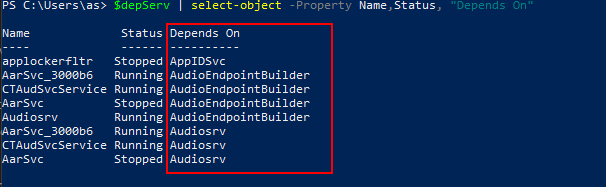
Grouping an expanded property using a calculated property
Combining Format-List with PowerShell Expand Property for Verbosity
PowerShell may limit which object properties to display, especially in tabular output, and the -ExpandProperty switch output may experience the same. You could show the expanded properties in a list instead as a workaround.
Run the Get-Process cmdlet below to retrieve all the modules the explorer process uses. Turn on the -ExpandProperty switch to display the properties of the modules.
Get-Process explorer | select-object -ExpandProperty ModulesThe output on your screen should resemble the following screenshot, automatically truncated to display only three properties.
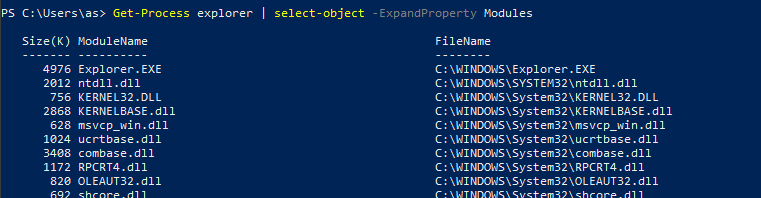
Viewing the truncated output of an expanded property
Pipe the objects to the Format-List cmdlet to view all the values for the module objects in a more manageable list.
Get-Process explorer | select-object -ExpandProperty Modules | Format-ListAs shown below, the output lists all properties and their values. You can further save the data to a file or pass it to another cmdlet for further processing.
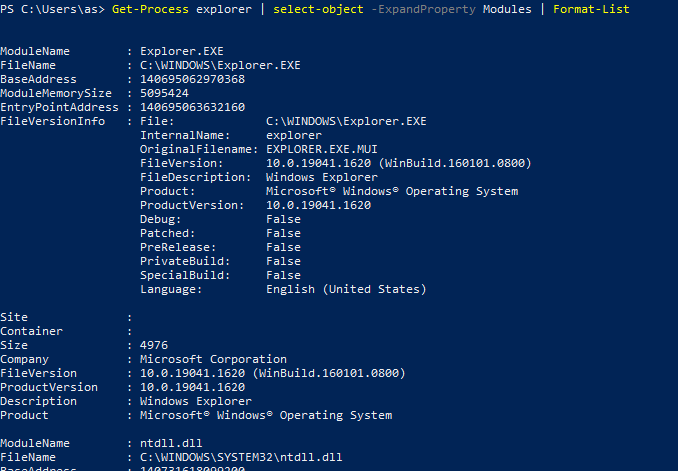
Converting the output of an expanded property to a list with Format-List
Conclusion
By successfully getting this far, you have seen how to benefit from the PowerShell Expand Property switch (-ExpandProperty) of the Select-Object cmdlet. PowerShell packs a host of useful cmdlets for many common tasks. You can augment your new knowledge by learning how to display files with PowerShell Cat quickly.