How to Add Timeouts to Pester Tests with PowerShell Runspaces
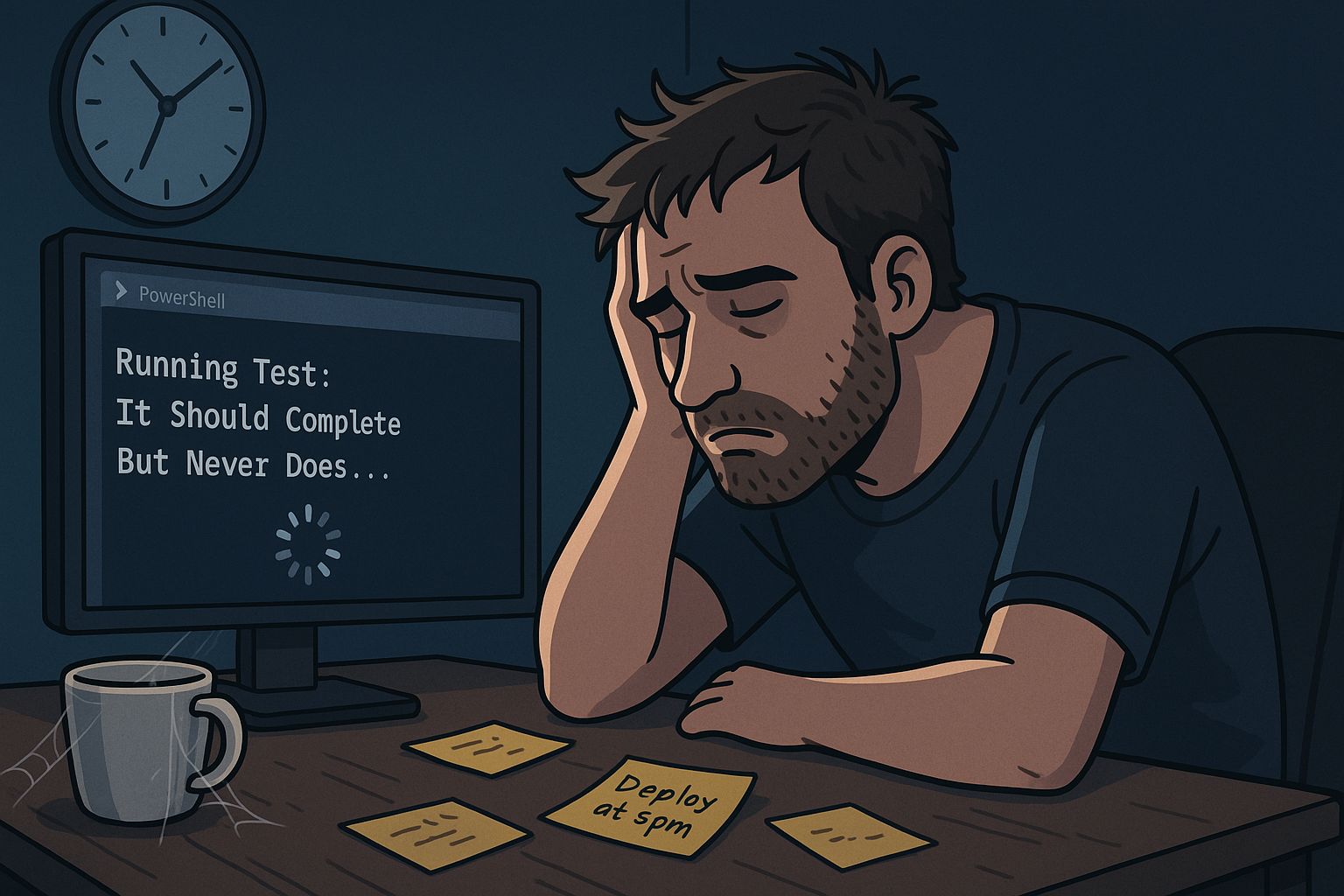
Have you ever had a Pester test hang indefinitely, blocking your entire test suite? Maybe it’s waiting for a network response that never comes, or stuck in an infinite loop. Without proper timeout handling, one bad test can ruin your entire CI/CD pipeline.
In this article, you’ll learn how to implement robust timeout handling for Pester tests using PowerShell runspaces, ensuring your test suite always completes in a predictable timeframe.
Note: All code snippets from this article are available in a single Gist at https://gist.github.com/adbertram/3a9ae607b073f3cabe86841fdd73b00d
Prerequisites
To follow along, you’ll need:
- Windows 10 or Windows Server 2016+ (examples use Windows, but concepts apply to PowerShell Core on any OS)
- PowerShell 7+
- Pester 5.0+ installed (
Install-Module -Name Pester -Force) - Basic understanding of Pester test structure
Understanding the Problem
By default, Pester tests run synchronously in the same PowerShell session. If a test hangs, there’s no built-in mechanism to stop it after a certain time. This becomes a critical issue when:
- Tests interact with external systems (databases, APIs, file shares)
- Tests have complex logic that might deadlock
- Tests run in automated pipelines where hanging means failed deployments
Let’s create a simple example that demonstrates the problem:
Describe “Hanging Test Example” { It “Should complete but never does” { # Simulating a hanging operation while ($true) { Start-Sleep -Seconds 1 } $true | Should -Be $true } }
Run this test and it will hang forever. You’ll have to manually stop it with Ctrl+C.
The Runspace Solution and Its Challenges
PowerShell runspaces allow you to execute code in isolated threads with timeout control. However, implementing runspaces for Pester tests introduces several challenges:
Challenge 1: Variable Scope Isolation
Runspaces don’t have access to variables from your main session. Consider this test:
Describe “Variable Scope Problem” { BeforeAll { $script:testData = “Important Test Data” }
It "Should access script variable" {
    # This would fail in a runspace - $script:testData doesn't exist there!
    $script:testData | Should -Be "Important Test Data"
}
}
Challenge 2: Module Loading
Runspaces start with a clean slate. They don’t have access to modules loaded in your main session:
# This works in your main session Import-Module MyCustomModule
Describe “Module Loading Problem” { It “Should use custom cmdlet” { # This fails in a runspace - MyCustomModule isn’t loaded there! Get-MyCustomData | Should -Not -BeNullOrEmpty } }
Challenge 3: Pester’s TestDrive
The TestDrive is one of Pester’s most useful features, but it’s session-specific:
Describe “TestDrive Problem” { It “Should create file in TestDrive” { # In a runspace, TestDrive:\ doesn’t exist! $testFile = “TestDrive:\test.txt” “test content” | Out-File $testFile Test-Path $testFile | Should -Be $true } }
Challenge 4: Capturing Output Streams
Tests often write to various PowerShell streams (Warning, Verbose, Error). Capturing these from a runspace requires special handling:
Describe “Stream Capture Problem” { It “Should capture warnings” { Write-Warning “This is a test warning” Write-Verbose “This is verbose output” -Verbose # How do we capture these in a runspace? } }
Building a Robust Timeout Solution
Let’s build a comprehensive solution that addresses all these challenges:
function Invoke-PesterTestWithTimeout { <# .SYNOPSIS Executes a Pester test script block with timeout protection in an isolated runspace.
.DESCRIPTION
Runs test code in a separate runspace with proper variable injection, module loading,
stream capture, and TestDrive support.

.PARAMETER ScriptBlock
The test code to execute.

.PARAMETER TimeoutSeconds
Maximum seconds to wait for test completion.

.PARAMETER TestName
Name of the test for error reporting.

.EXAMPLE
Invoke-PesterTestWithTimeout -ScriptBlock { 1 + 1 | Should -Be 2 } -TimeoutSeconds 30 -TestName "Math Test"
#>
\[CmdletBinding()\]
param(
    \[Parameter(Mandatory)\]
    \[scriptblock\]$ScriptBlock,

    \[Parameter(Mandatory)\]
    \[int\]$TimeoutSeconds,

    \[Parameter(Mandatory)\]
    \[string\]$TestName
)

# Create initial session state
$iss = \[initialsessionstate\]::CreateDefault()

# Import Pester for Should cmdlets
$iss.ImportPSModule("Pester")

# Import any modules from the parent session
$loadedModules = Get-Module | Where-Object { $\_.Name -ne 'Pester' }
foreach ($module in $loadedModules) {
    if ($module.Path) {
        $iss.ImportPSModule($module.Path)
    }
}

# Create runspace
$runspace = \[runspacefactory\]::CreateRunspace($iss)
$runspace.Open()

# Challenge 1 Solution: Copy variables to runspace
$scriptVars = Get-Variable -Scope Script -ErrorAction SilentlyContinue
foreach ($var in $scriptVars) {
    # Skip automatic and system variables
    if ($var.Name -notmatch '^(\_|PS|Host|PID|PWD|null|true|false)' -and
        $var.Options -notmatch 'ReadOnly|Constant') {
        try {
            $runspace.SessionStateProxy.SetVariable($var.Name, $var.Value)
        } catch {
            # Some variables can't be set - continue
        }
    }
}

# Challenge 3 Solution: Inject TestDrive path
if (Test-Path Variable:TestDrive) {
    $runspace.SessionStateProxy.SetVariable("TestDrive", $TestDrive)
}

# Create PowerShell instance
$powershell = \[powershell\]::Create()
$powershell.Runspace = $runspace

# Load helper functions into runspace
$helperScript = @'
Make TestDrive:\ work in the runspace
if ($TestDrive) { $null = New-PSDrive -Name TestDrive -PSProvider FileSystem -Root $TestDrive -Scope Global -ErrorAction SilentlyContinue }
Helper to write to appropriate streams
function Write-StreamOutput { param($Message, $Stream) switch ($Stream) { ‘Warning’ { Write-Warning $Message } ‘Verbose’ { Write-Verbose $Message -Verbose } ‘Debug’ { Write-Debug $Message -Debug } ‘Information’ { Write-Information $Message } } } ’@
\[void\]$powershell.AddScript($helperScript)
\[void\]$powershell.AddScript($ScriptBlock.ToString())

try {
    # Start async execution
    Write-Verbose "Starting test '$TestName' with ${TimeoutSeconds}s timeout"
    $handle = $powershell.BeginInvoke()

    # Wait for completion or timeout
    if (-not $handle.AsyncWaitHandle.WaitOne($TimeoutSeconds \* 1000)) {
        Write-Warning "Test '$TestName' exceeded timeout, stopping execution"
        $powershell.Stop()
        throw "Test '$TestName' timed out after $TimeoutSeconds seconds"
    }

    # Get results
    $result = $powershell.EndInvoke($handle)

    # Challenge 4 Solution: Capture and replay all streams

    # Warning stream
    if ($powershell.Streams.Warning.Count -gt 0) {
        foreach ($warning in $powershell.Streams.Warning) {
            Write-Warning $warning.Message
        }
    }

    # Verbose stream
    if ($powershell.Streams.Verbose.Count -gt 0) {
        foreach ($verbose in $powershell.Streams.Verbose) {
            Write-Verbose $verbose.Message
        }
    }

    # Error stream
    if ($powershell.Streams.Error.Count -gt 0) {
        # Collect all errors first
        $errors = @($powershell.Streams.Error)

        foreach ($error in $errors) {
            Write-Verbose "Captured error: $($error.Exception.Message)"
        }

        # Throw the first error
        throw $errors\[0\].Exception.Message
    }

    # Information stream
    if ($powershell.Streams.Information.Count -gt 0) {
        foreach ($info in $powershell.Streams.Information) {
            Write-Information $info.MessageData
        }
    }

    # Debug stream
    if ($powershell.Streams.Debug.Count -gt 0) {
        foreach ($debug in $powershell.Streams.Debug) {
            Write-Debug $debug.Message
        }
    }

    # Copy variables back from runspace
    $getVarsCommand = \[powershell\]::Create()
    $getVarsCommand.Runspace = $runspace
    $getVarsCommand.AddScript("Get-Variable -Scope Script -ErrorAction SilentlyContinue")

    $runspaceVars = $getVarsCommand.Invoke()
    $getVarsCommand.Dispose()

    foreach ($var in $runspaceVars) {
        if ($var.Name -notmatch '^(\_|PS|Host|PID|PWD|null|true|false)' -and
            -not (Get-Variable -Name $var.Name -Scope Script -ErrorAction SilentlyContinue)) {
            try {
                Set-Variable -Name $var.Name -Value $var.Value -Scope Script -Force
            } catch { }
        }
    }

    return $result

} finally {
    # Cleanup
    if ($powershell) {
        $powershell.Dispose()
    }
    if ($runspace -and $runspace.RunspaceStateInfo.State -eq 'Opened') {
        $runspace.Close()
        $runspace.Dispose()
    }
}
}
Practical Examples
Let’s see how this solves our challenges:
Example 1: TestDrive Support
Describe “TestDrive with Timeout” { It “Should work with TestDrive in runspace” { $testScript = { # TestDrive now works! $testFile = Join-Path $TestDrive “test.txt” “Hello from runspace” | Out-File $testFile
        Test-Path $testFile | Should -Be $true
        Get-Content $testFile | Should -Be "Hello from runspace"
    }

    Invoke-PesterTestWithTimeout \`
        -ScriptBlock $testScript \`
        -TimeoutSeconds 10 \`
        -TestName "TestDrive Example"
}
}
Example 2: Variable Access
Describe “Variable Scope with Timeout” { BeforeAll { $script:testData = @{ Server = “TestServer” Database = “TestDB” } }
It "Should access script variables in runspace" {
    $testScript = {
        # Script variables are now available!
        $script:testData | Should -Not -BeNullOrEmpty
        $script:testData.Server | Should -Be "TestServer"

        # Create new variable in runspace
        $script:newData = "Created in runspace"
    }

    Invoke-PesterTestWithTimeout \`
        -ScriptBlock $testScript \`
        -TimeoutSeconds 10 \`
        -TestName "Variable Scope Test"

    # New variables are copied back!
    $script:newData | Should -Be "Created in runspace"
}
}
Example 3: Stream Capture
Describe “Stream Capture with Timeout” { It “Should capture all output streams” { $testScript = { Write-Warning “This is a warning from the test” Write-Verbose “Verbose output here” -Verbose Write-Information “Information message”
        # The test continues normally
        $result = 1 + 1
        $result | Should -Be 2
    }

    # Capture the streams
    $warnings = @()
    $verboseOutput = @()

    Invoke-PesterTestWithTimeout \`
        -ScriptBlock $testScript \`
        -TimeoutSeconds 10 \`
        -TestName "Stream Capture Test" \`
        -WarningVariable warnings \`
        -Verbose:$true -VerboseVariable verboseOutput

    # Verify streams were captured
    $warnings.Count | Should -BeGreaterThan 0
    $warnings\[0\] | Should -BeLike "\*warning from the test\*"
}
}
Example 4: Real-World Database Test
Describe “Database Operations with Timeout” { BeforeAll { $script:connectionString = “Server=localhost;Database=TestDB;Integrated Security=true;” }
It "Should query database within timeout" {
    $testScript = {
        $connection = New-Object System.Data.SqlClient.SqlConnection
        $connection.ConnectionString = $script:connectionString

        try {
            Write-Verbose "Opening database connection..."
            $connection.Open()

            $command = $connection.CreateCommand()
            $command.CommandText = "SELECT COUNT(\*) FROM Users"
            $command.CommandTimeout = 5

            $count = $command.ExecuteScalar()
            Write-Verbose "Found $count users"

            $count | Should -BeGreaterOrEqual 0
        }
        finally {
            if ($connection.State -eq 'Open') {
                $connection.Close()
            }
        }
    }

    Invoke-PesterTestWithTimeout \`
        -ScriptBlock $testScript \`
        -TimeoutSeconds 10 \`
        -TestName "Database Query Test" \`
        -Verbose
}
}
Advanced Usage: Test Framework Integration
Here’s how to integrate timeout handling into your entire test framework:
# PesterConfig.ps1 $global:TestConfig = @{ DefaultTimeout = 30 LongRunningTimeout = 300 QuickTestTimeout = 5 }
function Invoke-TestWithTimeout { param( [scriptblock]$Test, [int]$Timeout = $global:TestConfig.DefaultTimeout, [string]$Name )
# Add automatic retry logic for flaky tests
$attempts = 0
$maxAttempts = 3

while ($attempts -lt $maxAttempts) {
    $attempts++
    try {
        Write-Verbose "Attempt $attempts of $maxAttempts for test: $Name"

        Invoke-PesterTestWithTimeout \`
            -ScriptBlock $Test \`
            -TimeoutSeconds $Timeout \`
            -TestName $Name

        # Success - exit the retry loop
        break
    }
    catch {
        if ($attempts -eq $maxAttempts) {
            # Final attempt failed
            throw
        }

        # Log the failure and retry
        Write-Warning "Test '$Name' failed on attempt $attempts. Retrying..."
        Start-Sleep -Seconds 2
    }
}
}
Usage in tests
Describe “Production Test Suite” { It “Should complete quick operation” { Invoke-TestWithTimeout -Name “Quick Test” -Timeout $global:TestConfig.QuickTestTimeout -Test { # Fast test logic here “fast” | Should -Be “fast” } }
It "Should handle long-running process" {
    Invoke-TestWithTimeout -Name "Long Process" -Timeout $global:TestConfig.LongRunningTimeout -Test {
        # Long-running test logic here
        Start-Sleep -Seconds 2
        $true | Should -Be $true
    }
}
}
Best Practices
- Set Appropriate Timeouts: Don’t use the same timeout for all tests. Quick unit tests might need 5 seconds, while integration tests might need minutes.
- Log Timeout Events: Always log when a test times out. This helps identify problematic tests in CI/CD logs.
- Clean Up Resources: Use try/finally blocks in your test code to ensure resources are cleaned up even if the test times out.
- Monitor Memory Usage: Runspaces can consume memory. Ensure proper disposal to avoid memory leaks in long test runs.
- Handle Pester-Specific Features: Remember to handle special Pester features like Set-ItResult for skipped tests.
Conclusion
Adding timeout protection to Pester tests using runspaces solves the hanging test problem while introducing new challenges around variable scope, module loading, and stream capture. The solution presented here addresses all these challenges, giving you a robust framework for running large test suites reliably.
With proper timeout handling, your tests will always complete in a predictable timeframe, making your CI/CD pipelines more reliable and your test feedback faster.
Get the Code: All code snippets from this article are available in a single Gist at https://gist.github.com/adbertram/3a9ae607b073f3cabe86841fdd73b00d