The 10 Basic PowerShell Commands You Need to Know
Have you ever tried to write some PowerShell code and got stuck? Worry no more! One of the best ways to get good at PowerShell is by understanding the basics. Knowing a few basic PowerShell commands can make you a pro, and you’ll automate administrative tasks more efficiently.
In this tutorial, you’ll learn the basic PowerShell cmdlets you need to know to make your PowerShell experience more interesting.
Prerequisites
This tutorial will be a hands-on demonstration, but it doesn’t have many prerequisites. If you’d like to follow along, any system (Windows or Linux) with PowerShell 5.1 or above will work. Although the commands are shown using Windows PowerShell, the examples below work in PowerShell 7+ cross-platform.
Getting Help Information on Commands with Get-Help
Have you ever written code like a boss without getting any help? Well, there would always be a need for help as you write code. Whether you’re running code or commands in a command-line environment, the [Get-Help](https://docs.microsoft.com/en-us/powershell/module/microsoft.powershell.core/get-help?view=powershell-7.1) cmdlet comes in handy.
Let’s start this tutorial by learning how the Get-Help cmdlet works.
Related:Using the PowerShell Help Command Get-Help
The Get-Help cmdlet offers you the guides needed to use any command effectively without getting errors. See it as documentation for each of the PowerShell commands.
Open PowerShell as an administrator, and run the Get-Help command below to view detailed (-Detailed) information about a command, such as the [Get-ExecutionPolicy](https://docs.microsoft.com/en-us/powershell/module/microsoft.powershell.security/get-executionpolicy?view=powershell-7.1) cmdlet.
Get-Help -Name Get-ExecutionPolicy -Detailed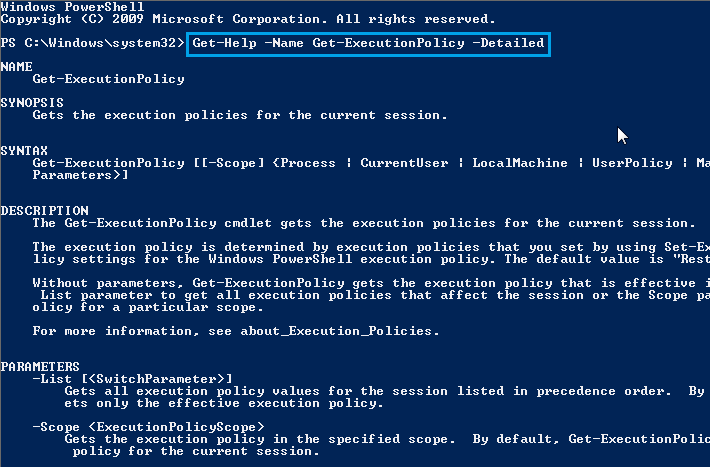
Getting Detailed Information of Commands
Instead of just detailed information, perhaps you want to view full information about a cmdlet. If so, add the -Full parameter in the Get-Help command instead.
Run the code below to get the full (-Full) information about the Get-Help cmdlet itself.
Get-Help Get-Help -Full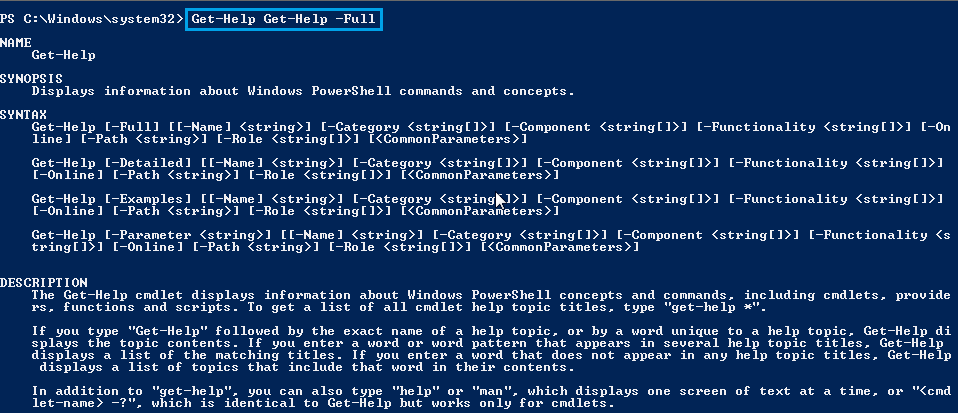
Getting Full Information of Commands
Perhaps you still need more examples to avoid errors when you running the command. In that case, add the -Examples parameter to see examples of writing a command.
Run the Get-Help command below to get examples (-Examples) on how you can use the Get-Process cmdlet.
Get-Help Get-Process -Examples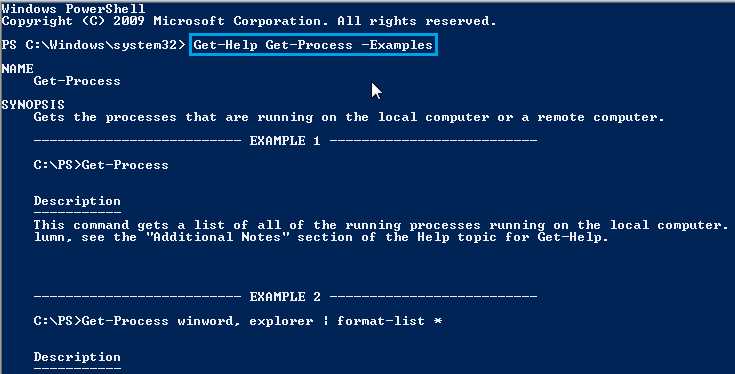
Applying -Examples to get help for Get-Process
Retrieving Computer Processes with Get-Process
Do you remember the Windows Task Manager that displays all your processes, services, applications, and all of that? Good! The [Get-Process](https://docs.microsoft.com/en-us/powershell/module/microsoft.powershell.management/get-process?view=powershell-7.1) cmdlet is a basic yet essential cmdlet that gives you access to all your computer’s processes in a few steps without opening Task Manager.
Related:How to Find Running Processes with PowerShell’s Get-Process Cmdlet
Run the following command to get a list of all your system processes in a table format.
Get-Process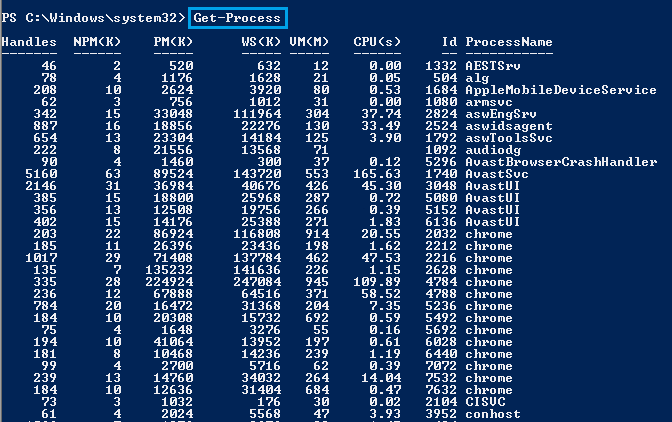
Getting All Windows Processes
When a process freezes and causes your computer to work slowly, stop the process by piping the
Get-Processcmdlet to theStop-Processcmdlet. For example: runGet-Process -Id 1252 | Stop-Process, where-Id 1252specifies the process ID of the process you want to stop.
Fetching PowerShell Session History with Get-History
There might be a need to check your recent commands, such as verifying if the recent command you executed is correct or if you actually executed a command. But does PowerShell have commands history? Yes! The [Get-History](https://docs.microsoft.com/en-us/powershell/module/microsoft.powershell.core/get-history?view=powershell-7.1) cmdlet returns an object of all your recent commands in your current PowerShell session.
Related:How to Use PowerShell’s History Feature
Run the command below to get a list of all the recently executed commands in your current session.
Get-History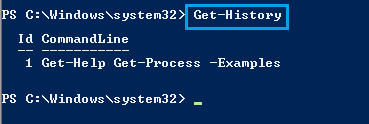
Getting the commands history of the current session
If you prefer to view specific commands from the history, add the
-Idparameter followed by the ID number of the command from the history. For example, runGet-History -Id 2to see the second command in the history.
Displaying System Services with Get-Service
Like the Get-Process cmdlet, PowerShell also lets you view all services running in your system. The [Get-Service](https://docs.microsoft.com/en-us/powershell/module/microsoft.powershell.management/get-service?view=powershell-7.1) cmdlet lets you view all services, which could be a database server or application that automatically controls the brightness of your computer screen.
Run the command below to get a list of all the services on your system in a table format. With this command, you get to view even stopped services.
Get-Service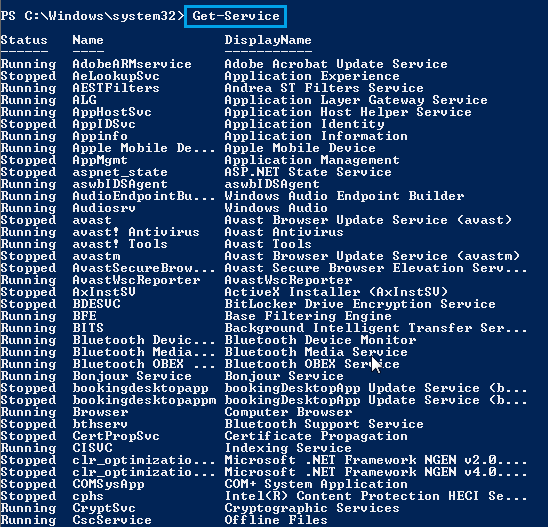
Getting all available services on the local computer
Perhaps you’re looking for services that start with a specific character. If so, adding a wildcard character (*) will do the trick.
Run the Get-Service command below, passing the first letter and asterisk (A*) of the services you want to view. Adding the wildcard character lets you filter all the services which do not start with the letter ‘A.’
Get-Service A*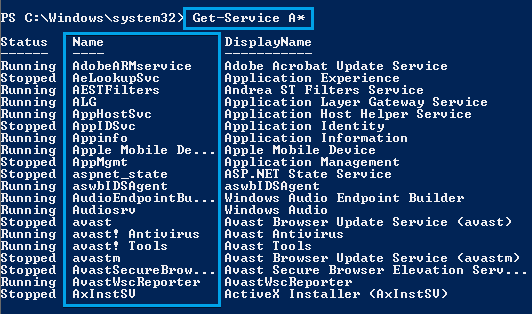
Getting all services that start with the letter ‘A’
Running Background Jobs with Start-Job
Writing codes can get annoying if there’s still so much to write, but a single command takes forever to write. No problem! PowerShell provides a cmdlet to run background jobs on your session. The [Start-Job](https://docs.microsoft.com/en-us/powershell/module/microsoft.powershell.core/start-job?view=powershell-7.1) cmdlet provides a PowerShell environment to run code or commands as a background job without user interaction.
Run the Start-Job command below to start a background job for the Get-Command cmdlet. Starting a background job runs the Get-Command cmdlet without displaying the output on your command line.
Start-Job -ScriptBlock {Get-Command}
Starting a background job for Get-Command
Since you’re background jobs, how do you check if a job is still running or completed? Run the
Get-Jobcmdlet to get all the jobs in your session.
Changing Working Directories with Set-Location
There are times when you need to change directories, such as when running a script or a program from a specific location. But how do you change directories? Let the [Set-Location](https://docs.microsoft.com/en-us/powershell/module/microsoft.powershell.management/set-location?view=powershell-7.1) cmdlet help you with that. The Set-Location cmdlet sets the current working directory to the directory you specify in a command.
Run the code below to set the current working directory to C:\Users\hp\Desktop. _C_hange hp with your computer’s username.
Set-Location C:\Users\hp\DesktopBelow, you can see in the prompt that C:\Users\hp\Desktop is now the working directory.

Changing Working Directory
Verifying If Paths Exist via Test-Path
PowerShell may display a bug if you’re trying to access a file that doesn’t exist. How to avoid that? The [Test-Path](https://docs.microsoft.com/en-us/powershell/module/microsoft.powershell.management/test-path?view=powershell-7.1) cmdlet lets you check if a path exists or not, with its intuitive syntax.
Related:How to Use the PowerShell Test-Path Cmdlet
Now, create a folder on the Desktop, naming it NewFolder.
Run the Test-Path command below, followed by the path you prefer to test. For this example, the command tests if the C:\Users\hp\Desktop\NewFolder path exists.
Test-Path C:\Users\hp\Desktop\NewFolderBelow, you can see the command returned a True value since the path exists. Otherwise, you’ll get a False output.

Testing if the path exists
Converting PowerShell Object to HTML with ConvertTo-HTML
If you prefer an organized form for your data, convert your data to HTML with the [ConvertTo-Html](https://docs.microsoft.com/en-us/powershell/module/microsoft.powershell.utility/convertto-html?view=powershell-7.1) cmdlet. Fundamentally, the command takes in the output file you want to convert and the filename you want to save it with.
Related:How To Create An HTML Report With PowerShell
Run the command below to collect the list of all the PowerShell commands (Get-Command) in memory and convert (ConvertTo-Html) the list to an HTML file named Command.html.
The HTML file is saved on your Desktop since you previously changed the working directory. To save the HTML file in another location instead, specify the full path. For example:
Get-Command | ConvertTo-HTML > C:\Temp\Commands.html
# Creates a Commands.html file that contains all PowerShell commands
Get-Command | ConvertTo-Html > Commands.html
Exporting PowerShell Objects to CSV with Export-CSV
If you think a report in CSV would be better instead of HTML, then use the [Export-CSV](https://docs.microsoft.com/en-us/powershell/module/microsoft.powershell.utility/export-csv?view=powershell-7.1) cmdlet. Similar to the ConvertTo-Html cmdlet, the Export-CSV cmdlet lets you export data to a CSV file.
Run the command below to collect a list of PowerShell commands (Get-Command), and export the list as a CSV file (Export-CSV) named Commands.csv.
Get-Command | Export-CSV Commands.csvLike in the ConvertTo-Html cmdlet, you can also specify an export path for the CSV file like this:
Get-Command | Export-CSV C:\Temp\Commands.csv
Open the Commands.csv file, and you’ll see something like the one below. Not bad, right?
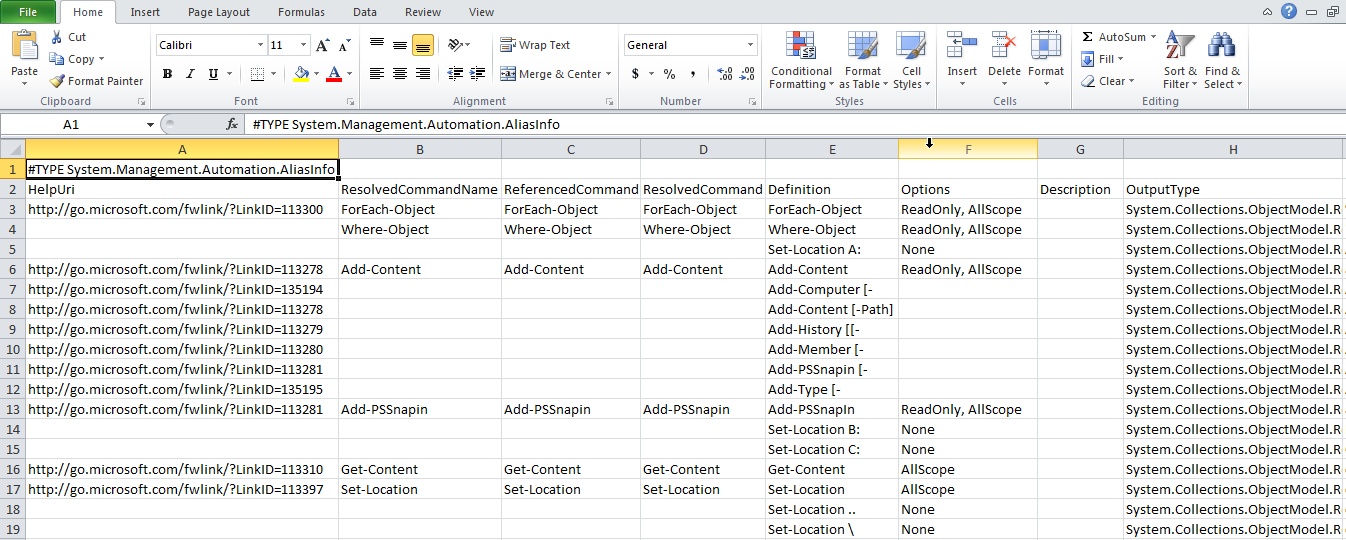
Opening Exported Commands.csv in Microsoft Excel
Viewing all Available PowerShell Commands with Get-Command
The last PowerShell command on the list is the [Get-Command](https://docs.microsoft.com/en-us/powershell/module/microsoft.powershell.core/get-command?view=powershell-7.1) cmdlet. The Get-Command cmdlet basically lists all available PowerShell commands you can run in a table format. But as you’ve seen in the previous examples, you know that it’s not all that the Get-Command can do.
Perhaps you want to list the cmdlets or the aliases selectively. If so, add the -CommandType parameter to the Get-Command cmdlet to filter out the output by the command type you specify. The -CommandType parameter’s value can be Alias, Cmdlet, or Function.
Run the Get-Command command below to list only cmdlets (-CommandType Cmdlet) with names starting with ‘G’ (-Name G*).
Get-Command -Name G* -CommandType Cmdlet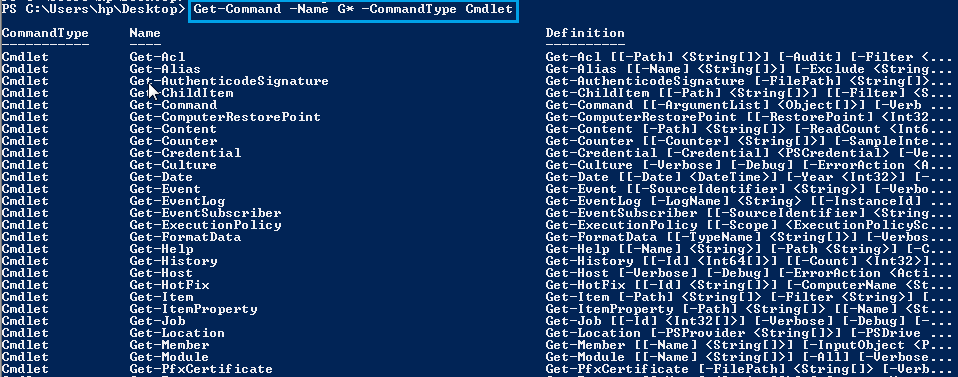
Getting all cmdlets that start with the letter ‘G’
Another way of filtering the Get-Command output is by piping it to the [Select-Object](https://docs.microsoft.com/en-us/powershell/module/microsoft.powershell.utility/select-object?view=powershell-7.1) cmdlet. As you know, the object returned by the Get-Command cmdlet is in a table format. In that table, the column names represent the properties you can select from the object.
Run the Get-Command below to collect a list of all PowerShell commands and filter’s the display to show each command’s definition property (Select-Object -Property Definition).
Get-Command | Select-Object -Property Definition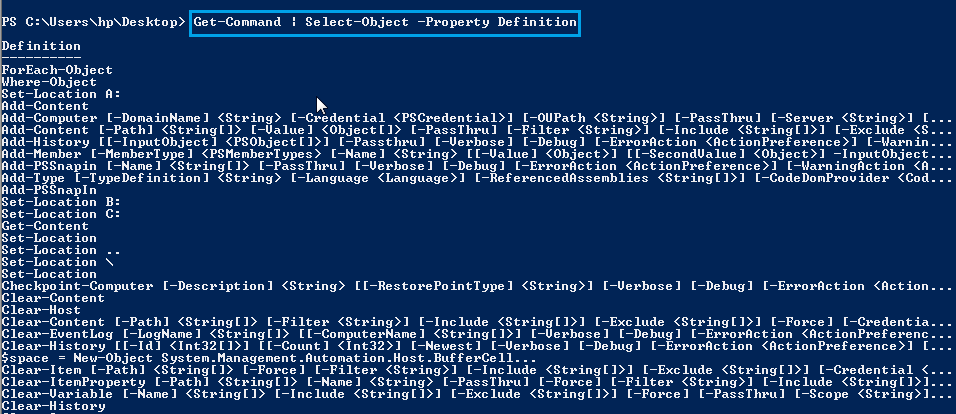
Property Definition
Conclusion
This tutorial has given you a thorough guide on running basic PowerShell commands. By now, you should know how to extensively pipe and run commands and avoid getting stuck at coding anytime.
Now, how would you build on this newfound knowledge? Perhaps learn how to write multi-line commands in PowerShell scripts without messing things up?
Related:Understanding When & When Not to Create PowerShell New Lines